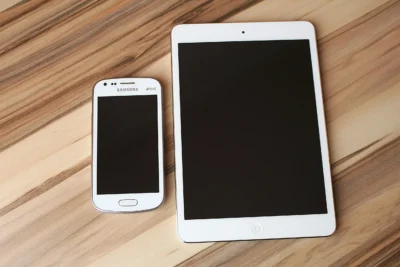
Introduction: Why Tablets Are Perfect for Seniors
Tablets have become one of the most convenient and user-friendly devices for seniors. They offer large screens, easy-to-use touch controls, clear text, and access to thousands of helpful apps. Whether you want to read books, talk to family, watch movies, or play relaxing games, a tablet can bring it all to your fingertips.
This guide walks you through the basics of using a tablet—whether it’s an iPad, Samsung Galaxy Tab, Amazon Fire tablet, or another brand. By the end, you’ll feel confident browsing the web, staying connected, and enjoying your favorite entertainment with ease.
Step 1: Getting Comfortable With Your Tablet
Turning Your Tablet On and Off
Most tablets have a single power button on the top or side edge. Hold it for a few seconds to turn the device on. To turn it off, press and hold the button again until an option appears on the screen.
Understanding the Home Screen
Your tablet’s home screen works like a desk where you keep your most important items. You’ll find:
- App icons — Shortcuts to open programs like email, camera, or messaging.
- Control center or quick settings — Adjust brightness, Wi-Fi, volume, and more.
- Search bar — Quickly look up apps, contacts, or information on the web.
Using Touch Controls
Tablets respond to gentle touches. Common gestures include:
- Tap — Selects something (like pressing a button).
- Swipe — Moves between pages or screens.
- Pinch-to-zoom — Makes text or images bigger or smaller.
Step 2: Reading Books, Magazines, and News Articles
Using the Kindle, Apple Books, or Google Play Books Apps
Tablets are excellent e-readers. You can download apps like Kindle, Apple Books, or Google Play Books to access millions of titles. These apps allow you to adjust:
- Text size
- Font type
- Brightness
- Background color (white, sepia, or dark)
This makes reading easier for people with vision challenges.
Reading Magazines and Newspapers
Apps like Apple News+, Flipboard, and PressReader offer digital versions of popular publications. This is helpful if you prefer large text or want to avoid handling physical newspapers.
Using Built-In Accessibility Tools
Many tablets include features like:
- Zoom — Magnifies parts of the screen.
- Speak Screen — Reads text aloud.
- Voice dictation — Lets you dictate instead of typing.
Step 3: Making Video Calls With Family and Friends
Choosing a Video Calling App
Most seniors use tablets to stay connected with loved ones. Popular apps include:
- FaceTime (iPad users)
- Zoom
- Google Meet
- Skype
- WhatsApp (video chat feature)
How to Start a Video Call
Although each app looks a little different, most follow the same steps:
- Open the video calling app.
- Select the person you want to call.
- Tap the video camera icon.
Your tablet’s front-facing camera will activate, allowing you to see and talk to your loved ones instantly.
Improving Call Quality
For a clearer picture and sound:
- Sit in a well-lit room.
- Use headphones with a built-in microphone if possible.
- Ensure you have a strong Wi-Fi connection.
Step 4: Watching Movies, TV Shows, and Videos
Streaming Services
Tablets give you access to thousands of movies and shows. Popular apps include:
- Netflix
- Amazon Prime Video
- Disney+
- Hulu
- YouTube
Adjusting Video Settings
You can control brightness, subtitles, and playback speed to make watching more comfortable.
Using Bluetooth Speakers
If you need louder audio, tablets can connect to external speakers or soundbars via Bluetooth.
Step 5: Playing Simple Games and Brain Exercises
Games on tablets are not just for kids—many are designed specifically for adults and seniors. Popular activities include:
- Crossword puzzles
- Sudoku
- Word search games
- Card games like Solitaire
- Brain training apps like Lumosity or Elevate
These games can help keep your mind sharp and provide relaxing entertainment.
Step 6: Staying Safe While Using Your Tablet
To protect your device and privacy:
- Use a strong password or fingerprint unlock.
- Install updates when prompted.
- Download apps only from trusted app stores.
- Avoid clicking links in suspicious emails or messages.
Following these habits ensures your tablet remains safe and enjoyable to use.
Conclusion: Enjoying the Benefits of Tablet Technology
Tablets are powerful yet easy-to-use devices that can transform your daily routine—connecting you with loved ones, giving you access to books and entertainment, and helping you stay informed. With just a little practice, you can use a tablet confidently and enjoy the convenience it brings to everyday life.