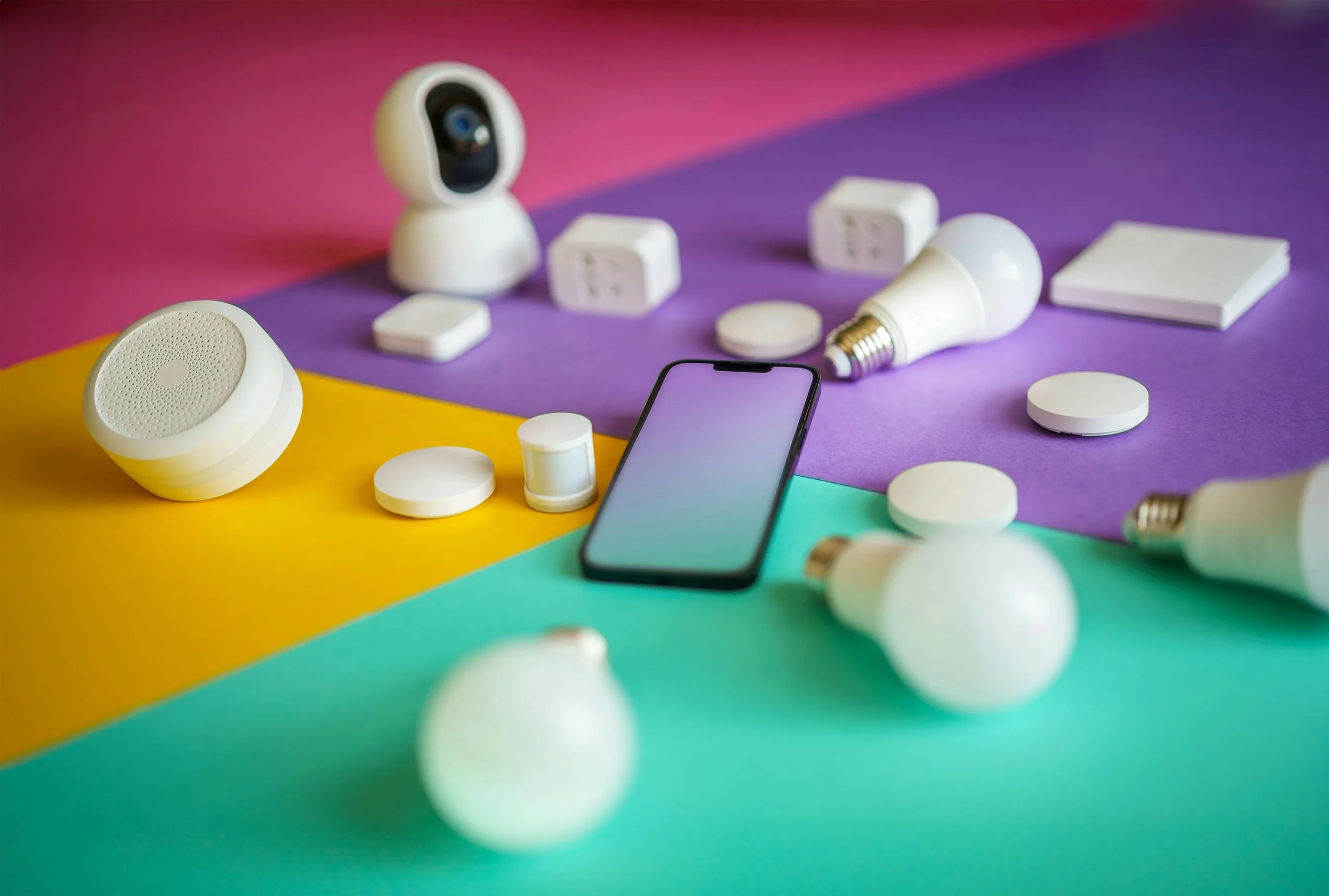
Smart Home Devices Made Simple
Smart home devices—like smart lights, thermostats, and plugs—are designed to make your daily life easier and more comfortable. Many seniors enjoy using them because they help save energy, increase safety, reduce physical strain, and simplify everyday tasks. With a few taps on your phone or a simple voice command, you can turn on lights, adjust your thermostat, or control appliances from anywhere.
While the idea of “smart home technology” may sound complicated, most devices are actually very easy to set up. This guide walks you through the process step by step, using simple instructions and clear explanations. By the end, you’ll feel confident connecting your own smart home devices.
What You Need Before You Begin
Before setting up smart home devices, make sure you have the following:
- A home Wi-Fi network (most devices require Wi-Fi to connect)
- A smartphone or tablet (Apple iPhone/iPad or Android)
- The manufacturer’s app (such as Philips Hue, Google Home, Amazon Alexa, or SmartThings)
- A smart home device (light bulb, thermostat, or smart plug)
Once you have these items, you’re ready to get started.
Step 1: Download the App for Your Device
Every smart home device requires an app to help with setup. For example:
- Smart Lights: Philips Hue, Kasa Smart, Sengled
- Smart Thermostats: Nest, Ecobee, Honeywell Home
- Smart Plugs: Amazon Smart Plug, Kasa, GE CYNC
To download the app:
- Open the App Store (iPhone/iPad) or Google Play Store (Android).
- Type the brand name of your device into the search bar.
- Tap Install or Get.
- Open the app once the installation is complete.
Step 2: Plug In or Install the Device
Each device connects a little differently:
Smart Lights
- Screw the smart bulb into your lamp or ceiling fixture.
- Turn the light switch on.
Smart Thermostats
Note: You may want help from a technician if you are not comfortable with wiring.
- Remove your old thermostat plate.
- Attach the labeled wires to the new thermostat’s connectors.
- Mount the new thermostat and turn the power back on.
Smart Plugs
- Plug the smart plug into a wall outlet.
- Plug your lamp, fan, or appliance into the smart plug.
Step 3: Connect the Device to Your Wi-Fi Network
Most apps will guide you through this part automatically. Here’s the general process:
- Open the device’s app.
- Tap Add Device or Set Up New Device.
- Select the type of device you’re installing (light, thermostat, plug).
- Enter your home’s Wi-Fi name and password.
- Wait while the app connects to your device.
If the device takes more than a minute to connect, make sure you’re close to your Wi-Fi router and that your internet is working properly.
Step 4: Name Your Device
Naming your device helps you stay organized, especially if you plan to use voice commands. Try names that clearly describe the location or purpose.
- “Living Room Lamp”
- “Bedroom Thermostat”
- “Kitchen Plug”
These names make it easier for voice assistants to understand commands like: “Alexa, turn on the living room lamp.”
Step 5: Set Up Schedules or Automations
Many smart devices allow you to create schedules so things happen automatically:
Examples of Helpful Automations for Seniors:
- Smart lights: turn on at sunset and off at bedtime
- Thermostats: adjust temperature during sleeping hours
- Smart plugs: turn off appliances after a set amount of time
These simple automations add convenience and can help save money on electricity.
Step 6: Add Voice Control (Optional but Helpful)
Voice assistants like Amazon Alexa, Google Assistant, or Apple Siri make smart home devices even easier to use.
To connect your devices:
- Open your voice assistant’s app (Alexa, Google Home, Apple Home).
- Tap Add Device or Link Service.
- Select the brand of your smart device.
- Sign in and give permission to connect.
Now you can control devices hands-free.
Common Troubleshooting Tips
If your device won’t connect:
- Restart your Wi-Fi router.
- Move the device closer to your router.
- Make sure you typed your Wi-Fi password correctly.
If your voice assistant doesn’t respond:
- Check your device name in the app.
- Make sure your smart device is online.
- Restart the voice assistant device.
Conclusion
Smart home devices can make life easier, safer, and more enjoyable—especially for seniors. Whether you want to control lights from your recliner, adjust the thermostat without walking across the room, or automate daily routines, these tools are accessible and senior-friendly with just a little setup.